JBL Bar 9.1 True Wireless Surround: A Comprehensive Manual Guide
This guide details setup, features, and troubleshooting for the JBL Bar 9.1, a Dolby Atmos soundbar with wireless surround speakers and a subwoofer.
Welcome to immersive audio! The JBL Bar 9.1 True Wireless Surround system delivers a premium cinematic experience directly to your living room. This comprehensive soundbar, paired with detachable wireless surround speakers and a powerful subwoofer, creates a true Dolby Atmos experience.
This manual provides detailed instructions for setting up and utilizing all the features of your new soundbar. From initial power-on and wireless pairing to advanced settings like AirPlay and Wi-Fi connectivity, we’ll guide you through every step.
The JBL Bar 9.1 is designed for ease of use, offering multiple connection options – HDMI ARC/eARC, optical, and Bluetooth – to seamlessly integrate with your TV and mobile devices. Prepare to elevate your home entertainment with exceptional sound quality and convenience!
What’s in the Box?
Before you begin, ensure all components are present. Your JBL Bar 9.1 True Wireless Surround system package should include the following:
- Soundbar Unit: The main audio processing and speaker component.
- Wireless Subwoofer: Delivers deep, resonant bass for an enhanced experience.
- Two Wireless Surround Speakers: Detachable speakers for true surround sound.
- Power Cables: One for the soundbar and one for the subwoofer.
- HDMI Cable: For connecting to your TV via HDMI ARC/eARC.
- Remote Control: With batteries included, for convenient control.
- Wall Mounting Brackets: For optional wall installation of the soundbar.
- Quick Start Guide: A simplified guide for initial setup.

Carefully unpack all items and inspect for any damage. If anything is missing or damaged, contact JBL customer support immediately.
System Overview: Components & Features
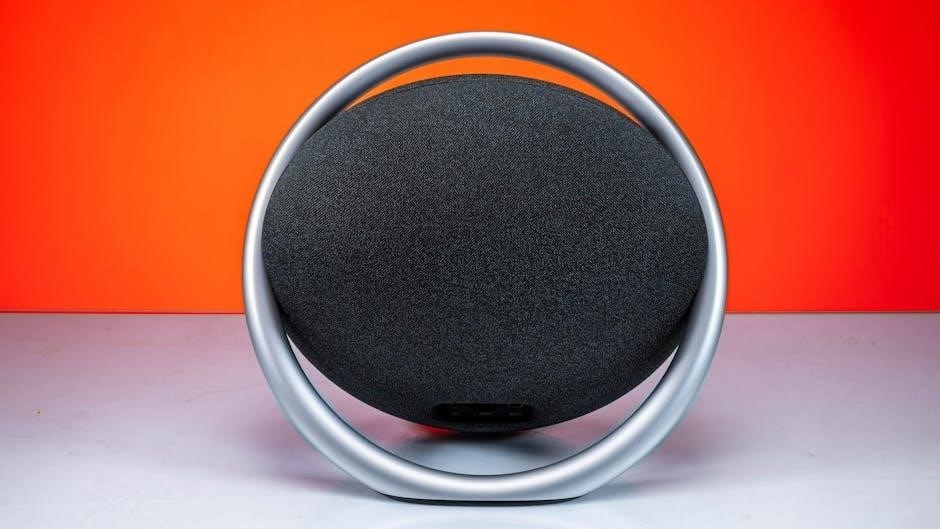
The JBL Bar 9.1 is a comprehensive audio solution designed for immersive home theater experiences. The system centers around the soundbar itself, housing multiple drivers for clear and dynamic sound. Detachable wireless surround speakers provide true spatial audio, enhancing the feeling of being in the action. A powerful wireless subwoofer delivers deep, impactful bass.
Key features include Dolby Atmos support for 3D sound, HDMI ARC/eARC connectivity for simplified TV integration, and built-in Wi-Fi for music streaming via AirPlay. Bluetooth connectivity allows pairing with mobile devices. The system also supports software updates for continued improvement and new features. Control is managed via the included remote or the JBL BAR Setup app.
Setting Up Your JBL Bar 9.1
Proper setup ensures optimal performance. This involves connecting power, pairing wireless components, and establishing a connection to your TV or mobile devices.
Connecting to Power & Initial Power-On
To begin, connect the soundbar to a power outlet using the provided power cord. Ensure the cord is securely plugged into both the soundbar and the wall socket. Once connected, press the power button located on the top of the soundbar or on the remote control.
Upon initial power-on, the soundbar’s display should illuminate and show “HELLO”. This indicates the system is starting up. Allow a few moments for the soundbar to complete its initialization process. During this time, it may automatically begin searching for previously paired devices.
If the display doesn’t illuminate, double-check the power connection and ensure the outlet is functioning correctly. A stable power supply is crucial for optimal performance.
Wireless Subwoofer Pairing
The JBL Bar 9.1’s subwoofer typically pairs automatically upon initial system power-up. However, if pairing doesn’t occur, a manual pairing process is required. Locate the pairing button on the rear of the subwoofer. Press and hold this button for approximately three seconds until the LED indicator begins to blink rapidly.
On the soundbar, navigate to the subwoofer pairing function within the settings menu – often accessible via the remote control. Initiate the pairing mode on the soundbar. The system will then search for the subwoofer. Once detected, a confirmation message will appear on the soundbar’s display.
Ensure the subwoofer is within range of the soundbar for a stable connection. Avoid obstructions that could interfere with the wireless signal.
Surround Speaker Pairing & Placement
The JBL Bar 9.1’s true wireless surround speakers require pairing with the soundbar for a fully immersive experience. To initiate pairing, power on the soundbar and each surround speaker. Locate the pairing button on the rear of each speaker and press it – the LED will blink to indicate pairing mode.
Through the soundbar’s settings menu (accessed via the remote), select the surround speaker pairing option. The soundbar will automatically search for and connect to the speakers. Optimal placement involves positioning the speakers behind the listening area, angled slightly inwards.
Experiment with speaker positioning to achieve the best surround sound effect for your room. Ensure clear line-of-sight between speakers and the soundbar.
Connecting to Your TV: HDMI ARC/eARC
HDMI ARC (Audio Return Channel) or eARC (enhanced ARC) provides the simplest and highest-quality connection to your TV; Locate the HDMI ARC/eARC port on your television – it’s usually labeled. Connect one end of an HDMI cable to this port and the other end to the HDMI ARC/eARC port on the JBL Bar 9.1.
On your TV, enable ARC/eARC functionality within the sound settings menu. This allows audio to be sent from the TV to the soundbar. The soundbar will automatically detect the connection.
eARC offers improved bandwidth for lossless audio formats like Dolby TrueHD and DTS-HD Master Audio. If your TV and soundbar both support eARC, utilize it for superior sound quality.
Connecting via Optical Cable
If your TV lacks HDMI ARC/eARC, an optical cable provides a reliable alternative connection. Locate the optical output port on your TV – it’s typically labeled “Optical” or “Toslink.” Connect one end of an optical cable to this port and the other end to the optical input on the JBL Bar 9.1.
Using your TV’s remote, navigate to the audio settings menu. Select “Optical” or “External Audio Device” as the audio output source. You may also need to adjust the digital audio output format to PCM or Dolby Digital, depending on your TV’s capabilities.
Optical connections do not support lossless audio formats like eARC, but still deliver excellent sound quality for most content.
Bluetooth Connection with Mobile Devices
The JBL Bar 9.1 can wirelessly stream audio from smartphones, tablets, and other Bluetooth-enabled devices. To initiate pairing, press the Bluetooth button on the soundbar’s remote control. The Bluetooth indicator on the soundbar will begin flashing, signaling it’s in pairing mode.
On your mobile device, enable Bluetooth and scan for available devices. Select “JBL Bar 9.1” from the list of discovered devices. If prompted, enter the pairing code “0000”. Once connected, audio from your device will play through the soundbar.
The soundbar remembers paired devices, automatically reconnecting when in range. To disconnect, either turn off Bluetooth on your device or press the Bluetooth button on the soundbar again.
Using the JBL Bar 9.1
Explore the soundbar’s functionalities, including remote control operation, sound mode selection, and personalized audio adjustments for an optimal listening experience.
Understanding the Remote Control
The JBL Bar 9.1 remote offers comprehensive control over your soundbar experience. Key buttons include Power, Volume Up/Down, and Mute for basic operation. Dedicated buttons allow quick access to pre-set Sound Modes – Dolby Atmos, Standard, and Voice – tailoring audio to your content.
The ‘Surround’ button manages the rear speaker volume, while the ‘Bass Boost’ enhances low frequencies. Navigation buttons control on-screen menus for advanced settings. A dedicated Bluetooth button initiates pairing with mobile devices. To initiate a software update, press and hold the ‘Power’ and ‘Volume Down’ buttons simultaneously for ten seconds. Ensure a stable connection during the update process. Familiarizing yourself with these controls unlocks the full potential of your JBL Bar 9.1.
Sound Modes: Dolby Atmos, Standard, Voice
The JBL Bar 9.1 offers distinct sound modes optimized for various listening experiences. Dolby Atmos delivers immersive, three-dimensional sound, utilizing overhead effects for a cinematic feel. ‘Standard’ mode provides a balanced audio profile suitable for general content, ensuring clarity across all frequencies.
The ‘Voice’ mode enhances vocal clarity, making dialogue more prominent – ideal for news, podcasts, or movies with complex soundtracks. Experiment with each mode to determine which best suits your preferences and the specific content you’re enjoying. Switching between modes is easily done via the remote control, providing instant audio adjustments. These modes ensure optimal sound reproduction for any situation.
Adjusting Bass & Treble
Fine-tune your audio experience with the JBL Bar 9.1’s bass and treble adjustment features. Access these controls through the soundbar’s settings menu, typically navigated using the remote control. Increasing the bass enhances low-frequency sounds, adding depth and impact to music and action sequences. Conversely, decreasing bass can reduce rumble and improve clarity.
Adjusting the treble controls high-frequency sounds, impacting the crispness of vocals and instruments. Raising treble can brighten the sound, while lowering it softens harsh tones. Experiment with subtle adjustments to find the perfect balance for your listening preferences and room acoustics. Remember, small changes can make a significant difference!
Volume Control & Muting
The JBL Bar 9.1 offers intuitive volume control via both the soundbar itself and the included remote control. Use the volume up and down buttons on either to adjust the sound level to your preference. The soundbar typically displays the current volume level on its front panel. For quick silence, utilize the mute button, also conveniently located on the remote.
Pressing the mute button instantly silences the audio output. Pressing it again restores the previous volume level. Some models may also support volume control through connected devices, like your TV remote via HDMI ARC. Ensure proper HDMI CEC settings are enabled on both the soundbar and your TV for this functionality to work seamlessly.

Advanced Features & Settings
Explore AirPlay, Wi-Fi connectivity, app control, software updates, and room calibration for a personalized and optimized audio experience with your JBL Bar 9.1.
AirPlay Setup for iOS Devices
To connect your iOS device via AirPlay, ensure both the device and the JBL Bar 9.1 are connected to the same home Wi-Fi network. Download the JBL BAR Setup application if you haven’t already. Launch the app and follow the on-screen prompts to initiate the AirPlay speaker setup process.
The app will guide you through selecting the JBL Bar 9.1 as your AirPlay destination. Once selected, your iOS device will stream audio wirelessly to the soundbar. This allows you to enjoy music, podcasts, and other audio content from your Apple devices with high fidelity.
For AirPlay users, ensure your iOS version is compatible for optimal performance. The setup is straightforward, offering a seamless integration between your Apple ecosystem and the JBL Bar 9.1’s immersive sound.
Wi-Fi Network Connection & App Control
Connecting your JBL Bar 9.1 to your home Wi-Fi network unlocks advanced features and app control capabilities. Utilize the JBL BAR Setup app, available for download, to initiate the Wi-Fi connection process. The app will scan for available networks and prompt you to enter your Wi-Fi password.
Once connected, the app becomes your central hub for controlling the soundbar. You can adjust sound modes, customize EQ settings, and access software updates directly through the app interface. Remote control functionality is mirrored within the app, offering convenient control from your smartphone or tablet.
A stable Wi-Fi connection is crucial for seamless app control and firmware updates. Regularly check for updates to ensure optimal performance and access to the latest features.
Software Updates & Firmware
Maintaining up-to-date software is vital for optimal performance of your JBL Bar 9.1. Firmware updates deliver bug fixes, enhance compatibility, and introduce new features. The JBL BAR Setup app facilitates a straightforward update process.
Within the app, navigate to the settings menu and select “Software Update.” The app will automatically check for available updates. If an update is found, follow the on-screen instructions to begin the installation. During the update, ensure the soundbar remains powered on and connected to a stable power source.
Do not interrupt the update process. Interrupting can potentially damage the soundbar’s software. The soundbar may restart automatically upon completion. Pressing the POWER and VOL- buttons for 10 seconds can also initiate an update.
Calibration & Room Correction
Optimizing sound quality for your specific room is crucial. The JBL Bar 9.1 doesn’t explicitly mention automatic room calibration, but proper speaker placement significantly impacts performance. Ensure the surround speakers are positioned correctly for immersive sound, and the subwoofer is placed for optimal bass response.
Experiment with speaker angles and distances to achieve the best possible soundstage. Consider room acoustics – hard surfaces can cause reflections, while soft furnishings absorb sound. Adjust bass and treble settings (described elsewhere in this manual) to fine-tune the sound to your preference and room characteristics.
Utilize the JBL BAR Setup app for potential EQ adjustments, if available, to further refine the audio experience. Careful placement and manual adjustments are key to maximizing the Bar 9.1’s potential.

Troubleshooting Common Issues
This section addresses frequent problems like no sound, subwoofer connection issues, Bluetooth pairing failures, and unresponsive remote controls for the JBL Bar 9.1.
No Sound Output
If you experience no sound with your JBL Bar 9.1, begin by verifying the power connections to both the soundbar and your TV; Ensure the soundbar isn’t muted – check both the unit’s display and the remote control. Confirm the correct input source is selected on the soundbar; cycle through HDMI ARC/eARC, Optical, and Bluetooth.
Next, check the TV’s audio output settings. Make sure the TV is configured to output audio via HDMI ARC/eARC or Optical, depending on your connection method. If using HDMI ARC/eARC, verify that the HDMI-CEC setting is enabled on your TV (sometimes labeled as Simplink, Bravia Sync, or Anynet+).
Finally, test with a different audio source (e.g., a different TV channel or a Bluetooth device) to isolate the problem. If the issue persists, try power cycling both the soundbar and the TV.
Subwoofer Not Connecting
If your JBL Bar 9.1’s subwoofer isn’t connecting, first ensure it’s powered on and within range of the soundbar (ideally within 30 feet with no obstructions). Initiate the pairing process again by pressing and holding the subwoofer’s connect button for three seconds until the LED blinks. Simultaneously, on the soundbar, press and hold the subwoofer button on the remote for three seconds.
Confirm the soundbar displays a “Pairing” message. If pairing fails, move the subwoofer closer to the soundbar and repeat the process. Check for potential interference from other wireless devices. Power cycling both the soundbar and subwoofer can often resolve connectivity issues.
Ensure the subwoofer is not already paired with another device. If problems continue, consult the JBL app for advanced troubleshooting steps.
Bluetooth Pairing Problems
Experiencing Bluetooth pairing issues with your JBL Bar 9.1? First, ensure Bluetooth is enabled on your mobile device and that it’s within range of the soundbar. Put the soundbar into Bluetooth pairing mode by pressing the Bluetooth button on the remote – the indicator light will blink. On your device, scan for available Bluetooth devices and select “JBL Bar 9.1” when it appears.
If pairing fails, clear the soundbar’s Bluetooth memory by turning it off and on again. Also, try forgetting the JBL Bar 9.1 from your device’s Bluetooth settings and re-pairing. Interference from other wireless devices can sometimes cause problems; move away from potential sources.
Confirm no other devices are actively connected to the soundbar via Bluetooth.
Remote Control Not Working
If your JBL Bar 9.1 remote isn’t responding, begin by checking the batteries. Replace them with fresh ones, ensuring correct polarity. Aim the remote directly at the soundbar’s front panel, avoiding obstructions. If it still doesn’t work, try resetting the remote by removing the batteries for several minutes, then reinserting them.
Ensure nothing is blocking the IR sensor on the soundbar. Some universal remotes may conflict; disconnect them. A software glitch could be the cause – try unplugging the soundbar for a minute, then plugging it back in to reset it.
If problems persist, consult the JBL support website for further assistance or a potential remote replacement.

Technical Specifications
This section outlines the JBL Bar 9.1’s power output, frequency response, dimensions, weight, and connectivity options for detailed system information.
Power Output & Frequency Response
The JBL Bar 9.1 delivers impressive audio performance with a total system power of 820W. This includes 40W for each of the two detachable surround speakers, 180W for the wireless subwoofer, and 300W for the soundbar itself.
Regarding frequency response, the soundbar operates between 70Hz – 20kHz, while the subwoofer extends down to 35Hz – 200Hz. This wide range ensures deep bass and clear highs, enhancing the Dolby Atmos experience. The surround speakers contribute to a broader soundstage, covering 85Hz – 20kHz.
These specifications highlight the system’s ability to reproduce a full spectrum of sound, providing immersive audio for movies, music, and gaming. Optimal performance relies on proper placement and calibration.
Dimensions & Weight
The JBL Bar 9.1 soundbar measures 1050 x 58 x 120 mm (W x H x D), offering a sleek, low-profile design to complement modern televisions. Its weight is approximately 3.9 kg, making it relatively easy to position.
Each detachable surround speaker has dimensions of 164 x 90 x 124 mm and weighs 0.77 kg. These compact speakers are designed for flexible placement around the listening area.
The wireless subwoofer measures 305 x 443 x 303 mm and weighs 10.3 kg, providing substantial bass response. Consider the available space when planning the system layout.
These dimensions and weights are crucial for ensuring proper fit and stability within your home theater setup, contributing to optimal audio performance and aesthetics.
Connectivity Options
The JBL Bar 9.1 offers versatile connectivity for seamless integration with your entertainment devices. It features HDMI ARC/eARC for high-quality audio transmission from compatible TVs, simplifying setup and control. An optical input provides an alternative connection method for older televisions.
Bluetooth connectivity enables wireless streaming from smartphones, tablets, and laptops, allowing you to enjoy your favorite music and podcasts. Furthermore, the soundbar supports Wi-Fi for AirPlay setup with iOS devices, enhancing streaming capabilities.
USB connectivity is available for software updates and firmware upgrades, ensuring your system remains current with the latest features and improvements. The system also supports Wi-Fi network connection for app control.
These diverse options ensure compatibility with a wide range of devices, maximizing your listening experience.